
Overview
The Medinbox cameras connect to the computer through a USB to Ethernet adapter (ASIX USB to Gigabit Ethernet). This adapter needs a fixed (static) IP address so the cameras can be found.
If the adapter is unplugged and reconnected to a different USB port, Windows may see it as a new network adapter. When this happens, the static IP address is lost, and the cameras are no longer detected in Medinbox.
To fix this, assign the static IP address to the adapter again by following the steps below.
Before you start: You may need Windows administrator rights to change network settings.
Step 1: Open Settings from the AppCenter
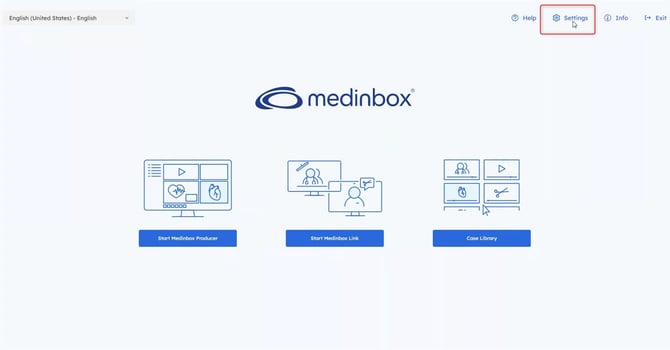
On the Medinbox AppCenter home screen, click Settings in the top-right menu.
Step 2: Open Network settings
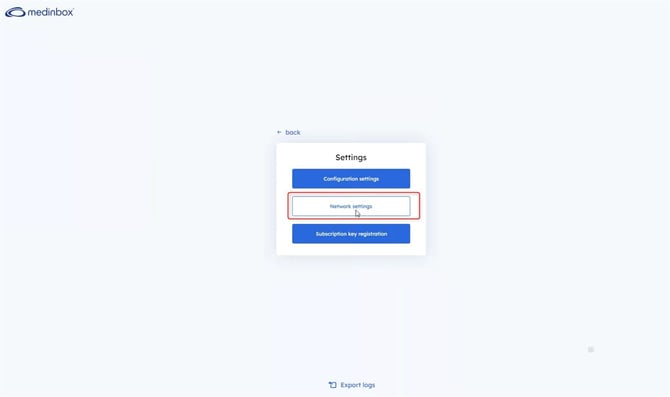
In the Settings menu, click Network settings. This opens the Windows Network Connections window.
Step 3: Edit the camera adapter's IP settings
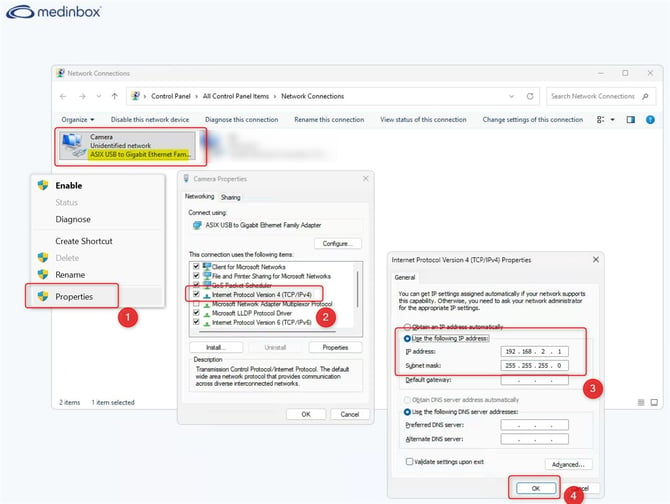
- In the Network Connections window, find the camera adapter. It is usually named Camera, with the description ASIX USB to Gigabit Ethernet Family Adapter. If you moved the adapter to a new port, it may have a different name, such as "Ethernet 2". Use the ASIX description to identify it.
- Right-click the adapter and select Properties.
- In the list of items, select Internet Protocol Version 4 (TCP/IPv4), then click Properties. You can also double-click it.
- Select Use the following IP address and enter:
- IP address: 192.168.2.1
- Subnet mask: 255.255.255.0
- Default gateway: leave empty
- Click OK to close the TCP/IPv4 window, then click OK again in the adapter's Properties window.
Note: Windows may warn you that this IP address is already assigned to another adapter. This is the old configuration from the previous USB port. Click Yes to remove the static IP from the absent adapter and continue.
Step 4: Check that the cameras are detected
Return to the AppCenter, start Medinbox Producer, and check that the cameras now appear.
Tip: To avoid this issue in the future, always plug the USB to Ethernet adapter back into the same USB port.
If the cameras are still not detected, click Export logs in the Settings menu and contact Medinbox Support with the exported file.